New App for Jira Data Center Deutsche Version

PMA Pro: change Jira projects safely and create them step by step

Project Management Assistant Pro is an assistant for Jira. It changes existing projects step by step and creates new ones. Anything shared stays protected, no issues get lost, and every run can be undone.

Free 30-day trial, purchase directly from Alendo.

  • For Jira Data Center 11.3 or later
  • Every step prefilled with the current state
  • Undo for every run
Summary in the PMA Pro assistant: the changes to the project are listed, with an “Apply changes” button below.

Sample view with made-up data

What PMA Pro does for you

For Jira admins and teams who no longer want to click through schemes, workflows and screens by hand.

Change existing projects safely

Name, description, project lead, category, issue types, statuses and workflow, fields (including their order), screens, permissions, roles, components, versions and an extra board. The assistant shows the current state first. If you just click “Next”, nothing changes.
Create new projects step by step

A 9-step assistant leads from the name to the board. Everything is sensibly prefilled. You can create your own statuses, workflow, issue types, fields and screens, or reuse what already exists.

Anything shared stays protected

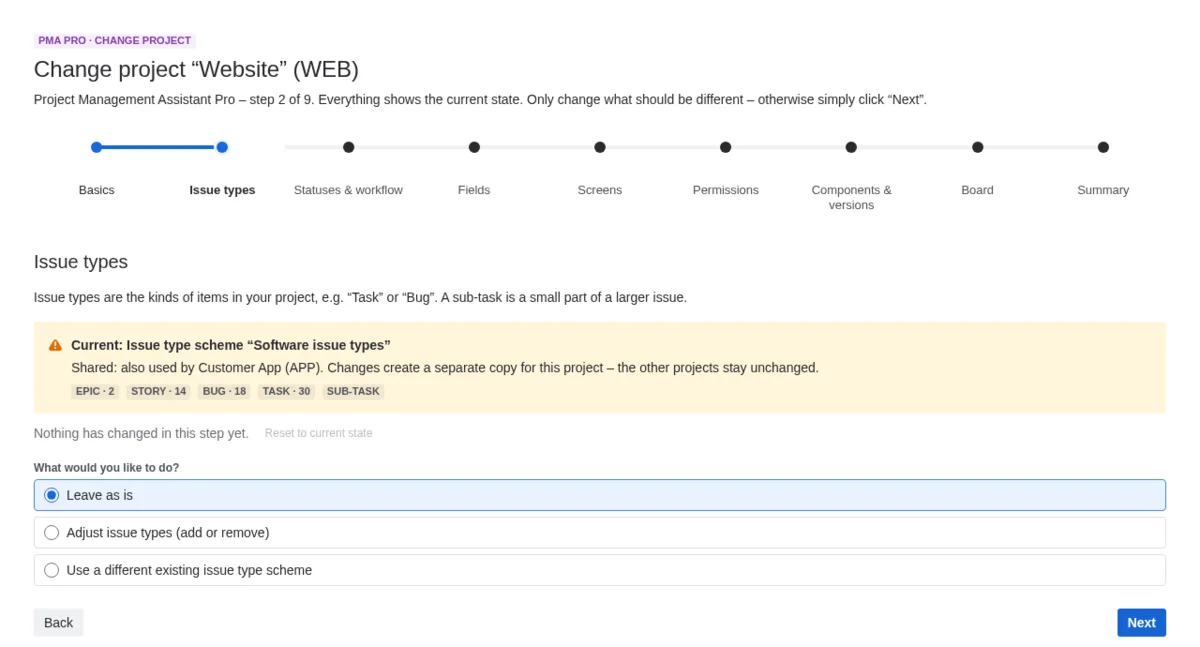
If several projects use the same scheme, workflow or screen, the project you change gets its own copy. The other projects stay as they are.

No issues get lost

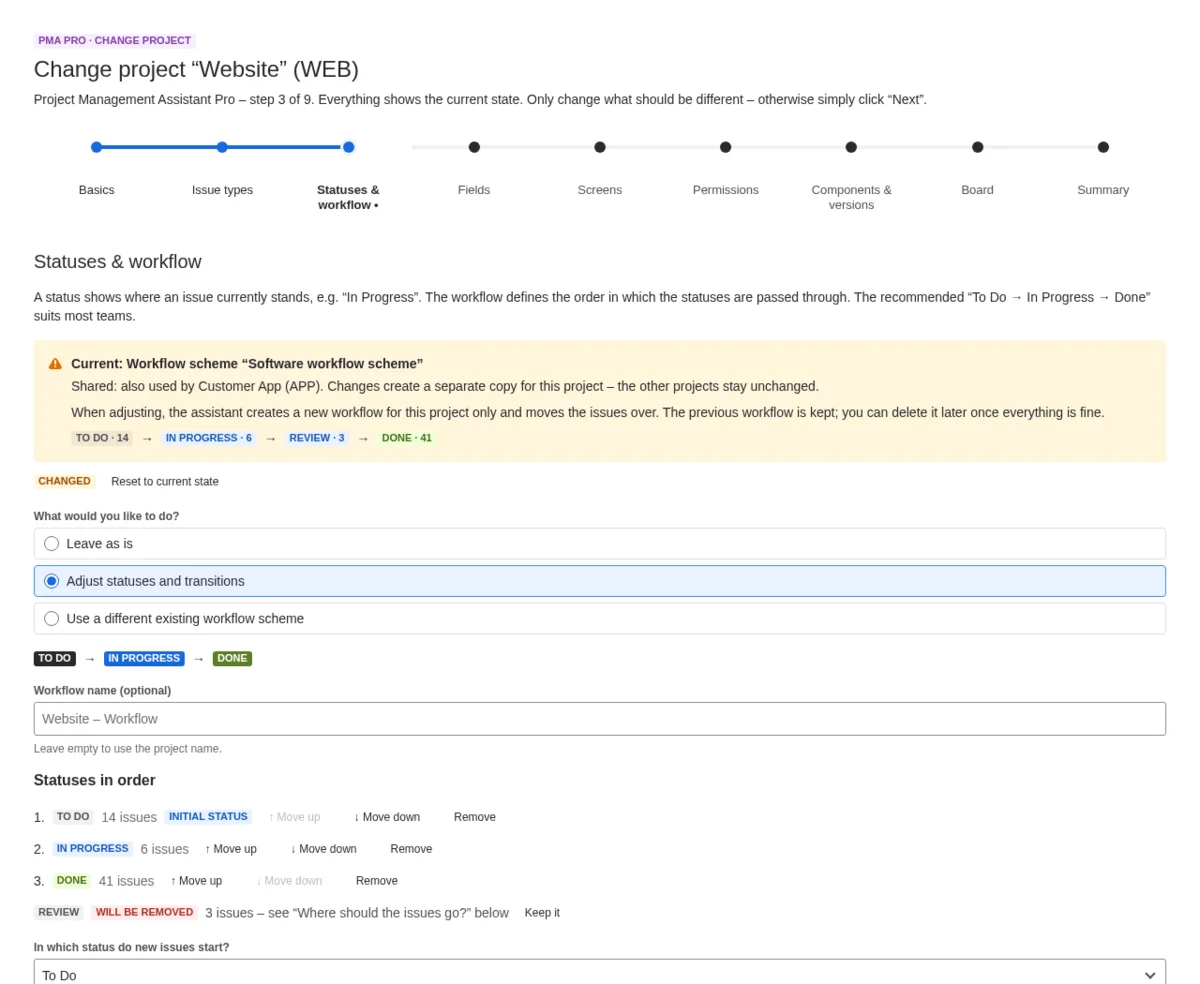
If a status that holds issues is removed, the assistant asks where those issues should go, and Jira moves them with its own workflow migration. Issue types, components and versions that still have issues are not deleted. The assistant tells you what to do first.

Undo

Every run can be undone, for new projects as well as for changes. For changes, the previous state comes back. One limit is described under “Good to know”.

Permissions and policy

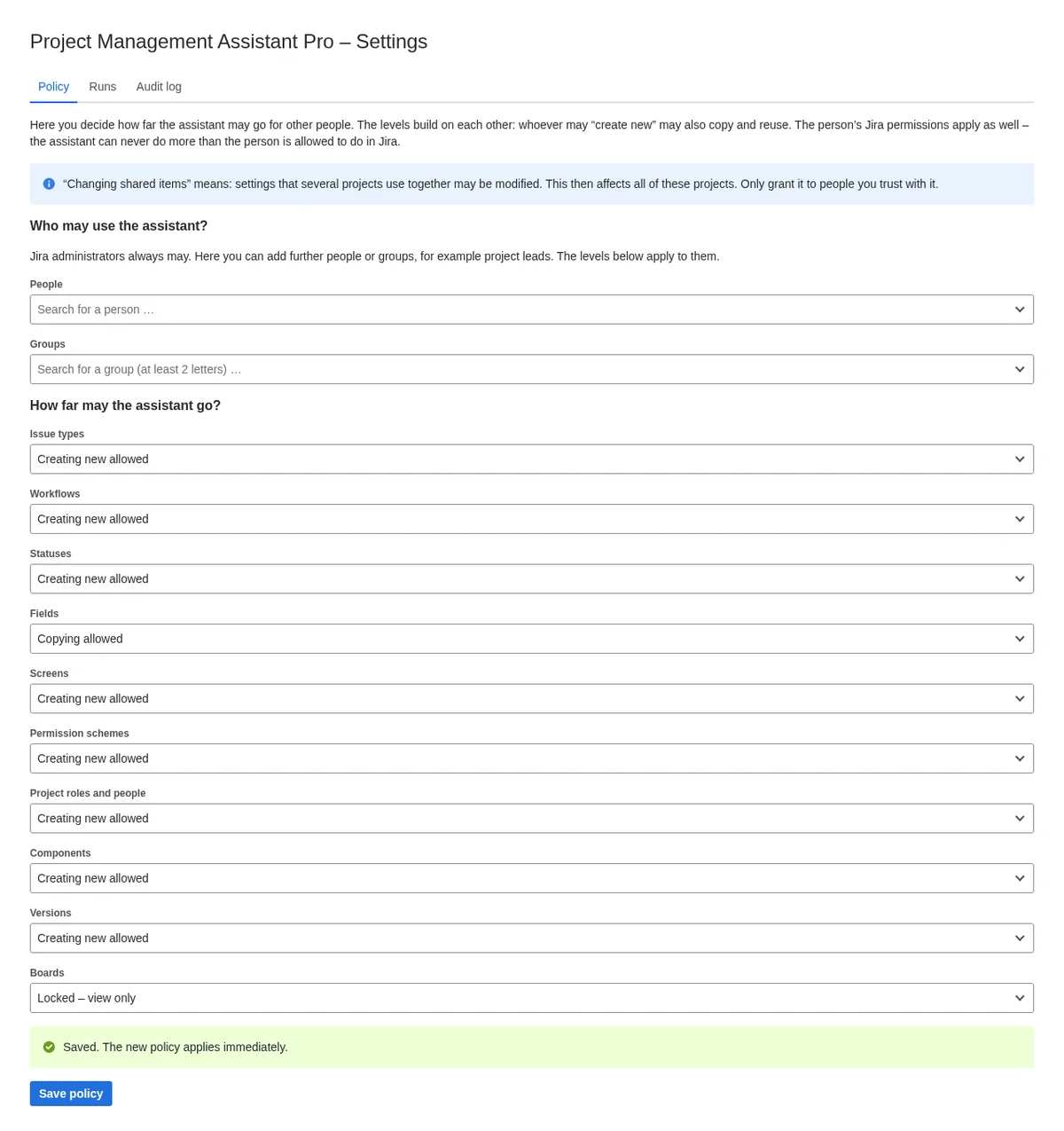
Jira admins decide who may use the assistant and how far: per area locked, reuse, copy or create new. Project admins listed there may change their own projects. Never more than the person may do in Jira anyway.

A first look

Sample views from a test environment. All projects, names and figures are made up.

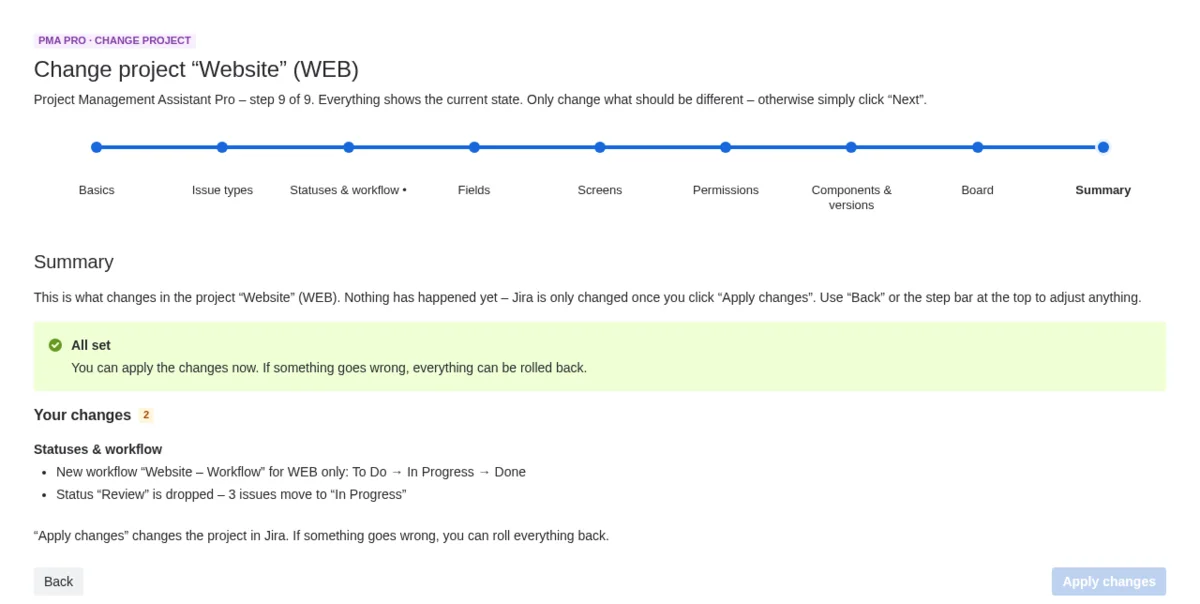
Summary before applying: only the differences are listed. Nothing has happened yet.
Summary: only the differences, nothing is changed yet
“Status & workflow” step in change mode: current workflow, changes marked, and a choice of where the issues of a removed status should go.
Status and workflow: the assistant asks where issues should go
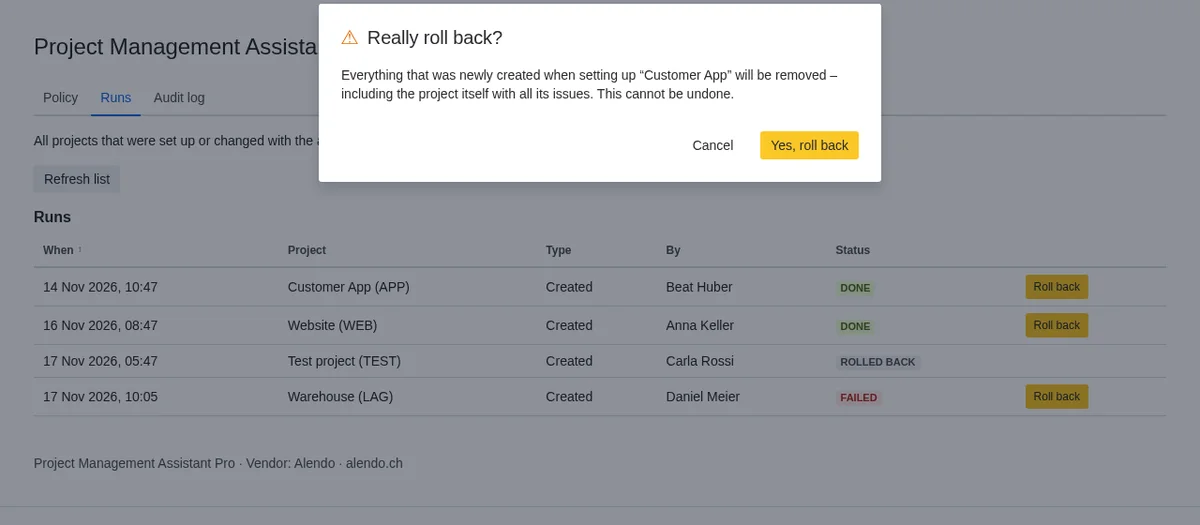
Confirmation dialog “Really undo?” above the list of runs.
Undo with confirmation, from the list of runs
“Policy” settings page: per area, you set whether reusing, copying or creating new is allowed.
Policy: who may do what, per area
“Issue types” step in change mode: a notice that the scheme is also used by another project and that a separate copy will be created.
Shared items are detected: changes create a separate copy

The interface follows the Jira language. The English view is shown here.

How it works

From project to change in four steps.

  1. 1

    Choose a project

    Use the “PMA Pro” entry in the Jira navigation: first “Change an existing project” with a project search, then “Create a new project”. Project admins can also go straight there via “PMA Pro” in the project settings.

  2. 2

    Go through the steps

    Every step is prefilled with the current state. Changes are marked (“new”, “changed”, “will be removed”) and can be reset to the current state for each step.

  3. 3

    Check the summary

    The summary shows only the differences. Up to here, nothing has changed in Jira. Without any change, “Apply changes” is disabled.

  4. 4

    Apply, and undo if needed

    The run happens in the background with a progress display and carries on if Jira or the app is interrupted in between. In the list of runs, every run can be undone.

Who PMA Pro is for

For everyone who sets up or adjusts Jira projects and does not want to break anything.

Jira administrators

Set up and change projects consistently, without navigating through schemes, workflows and screens one by one. The policy defines what others may do.

Project admins and teams

Adjust your own project without being a Jira admin, as far as the policy allows, and without disturbing other projects.

Organisations with many projects

Where several projects share schemes, workflows or screens, the assistant shows what belongs to the project and what is shared, and separates anything shared when you change it.

Good to know

What PMA Pro cannot do yet.

  • The project key and the project type cannot be changed.
  • Changing fields and choosing a different screen assignment at the same time takes two passes. The assistant explains this in the step.
  • A workflow change creates a new workflow. The old one stays inactive and can be deleted once everything checks out.
  • After a workflow change and “Undo”, issues from a removed status do not necessarily return to their old status.
  • Existing boards are not changed. An additional board can be created. For new boards, columns, swimlanes and quick filters have to be set by hand (checklist at the end).
  • Delegation per project (finer permissions for project leads) is not available yet. The general policy applies.
  • Without Jira Software, business projects can be created without a board.
  • Objects that Jira provides itself (e.g. the status “In Progress”) are shown by PMA Pro under their stored name. Jira itself shows them translated to German-speaking users. Date fields use the browser’s format, not the Jira language.
  • Tested on a single Jira instance (11.3.13). Not tested: clusters with several nodes, very large projects, and a restart in the middle of a workflow migration.

Technical facts

Runs on
Jira Data Center 11.3 or later (Java 21). Jira 10 is not supported.
Jira Cloud
A version for Jira Cloud is in preparation. There is no date yet.
Project types
Software and business projects.
Installation
Upload the app file (JAR) in Jira as administrator: Administration, Manage apps, Upload app. “PMA Pro” then appears in the navigation.
Update and removal
Update by uploading again; settings and history are kept. Uninstalling leaves already created projects and schemes in place.
Interface
German and English, following the Jira language: German for German, English for every other language. This also covers messages, settings, and date and number formats. The app name always stays English.
Names in Jira
What the assistant creates in Jira (e.g. “KEY – Workflow Scheme”) follows the language of the person who starts the run. Runs and the log appear in the language of the person reading them.
Licensing
Directly from the vendor. The licence key can be verified without an internet connection.
Available from
Directly from Alendo via the licence portal apps.alendo.biz, with a 30-day trial licence.

Pricing

Annual subscription for Jira Data Center.

UsersPrice per year (CHF)Price per year (USD)
50680750
1001’2801’450
2502’4002’700
5004’1504’700
1’0006’7007’600
2’0009’10010’300
More than 2,000on requeston request
  • Prices per installation and year, excl. VAT (Alendo is not VAT-registered). Other currencies such as EUR on request or at checkout.
  • Terms end at the latest on 28 March 2029 (end of Atlassian Data Center). Shorter terms are charged pro rata per started month.
  • Free 30-day trial.
  • Invoice with Swiss QR-bill, payment within 30 days, license key after payment.

Frequently asked questions

Short answers. We are happy to clarify the rest in person.

Directly from Alendo via apps.alendo.biz. There you can request a free 30-day trial licence (Request a license key). Prices are listed in the “Pricing” section above. We are happy to answer questions in advance via the contact details below.

Today only in Jira Data Center 11.3 or later. A Cloud version is in preparation; we are not naming a date yet.

No. If a scheme, a workflow or a screen is used by several projects, the project you change gets its own copy. The other projects stay as they are.

If a status that holds issues is removed, the assistant asks which status they should move to. Issue types, components and versions that still have issues are not deleted.

Yes, every run can be undone. One limit: after a workflow change, issues from a removed status do not necessarily return to their old status. The old workflow also stays in place, inactive.

Jira administrators. In addition, persons and groups that an admin enters in the settings may use it: project admins then change the projects they administer. The policy defines per area how far they may go.

Vendor

PMA Pro is developed and maintained by Alendo Solutions & Services Peter, a sole proprietorship in Zufikon, Switzerland. In the Bremgarten region, Alendo is mainly known for IT security, and it also builds Lern-Zoo, a learning platform for primary schools.

Contact

Questions about PMA Pro? Write or call.

  • Email:
  • Phone: 041 508 25 85 · Mobile: 079 461 24 47
  • Vendor:
    Alendo Solutions & Services Peter
    Owner: Tobias Peter
    Oberdorfstrasse 18
    5621 Zufikon AG
  • UID: CHE-403.063.789
Get in touch